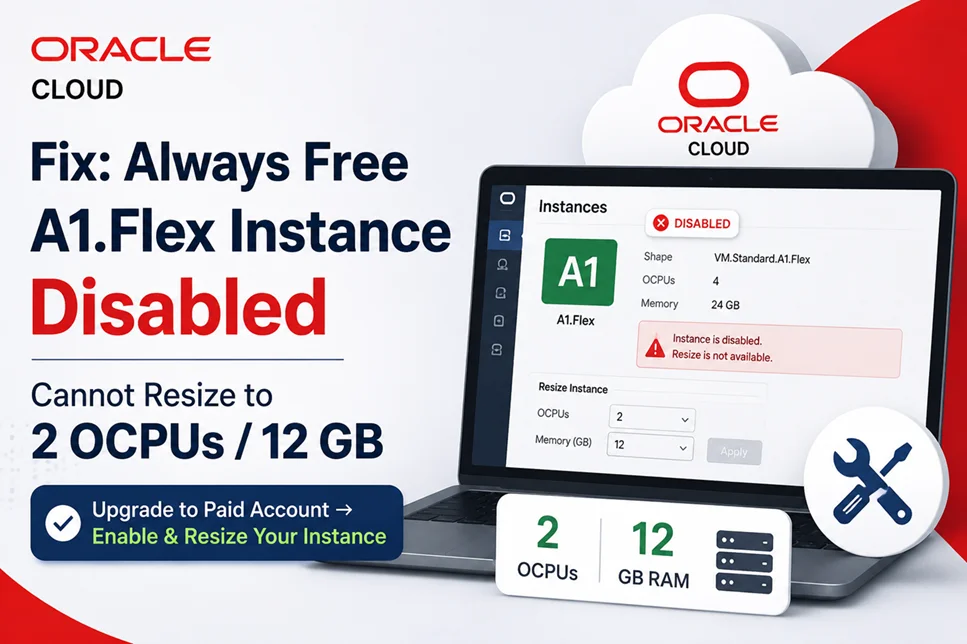
If your Oracle Cloud Always Free A1.Flex instance has been disabled and Oracle Cloud does not allow you to resize it to 2 OCPUs and 12 GB RAM, the problem can often be resolved by upgrading your Free Tier account to a Pay As You Go (paid) account.
This issue can be frustrating because you may want to reduce the resources of your existing instance, but you cannot make any changes while the instance is disabled.
Fortunately, there is a relatively simple way to deal with this situation.
The Problem
You may encounter a situation where your Oracle Cloud A1.Flex instance shows as disabled and you are unable to change its configuration.
For example, you may want to change the instance to:
- OCPUs: 2
- Memory: 12 GB RAM
However, because the instance is currently disabled, Oracle Cloud may prevent you from resizing or modifying it.
Simply trying to edit the instance configuration may therefore not solve the problem.
Solution: Upgrade Your Oracle Cloud Account
The solution is to upgrade your Oracle Cloud Free Tier account to a paid/Pay As You Go account.
After requesting the upgrade, it may take some time for Oracle to process the account change. In some cases, you may need to wait a few hours before the account is shown as fully upgraded.
Once your account becomes a paid account, the disabled instance should become enabled automatically if the disablement was caused by the Free Tier account/resource limitation.
You can then modify the instance configuration.
Step-by-Step Fix
Step 1: Log in to Oracle Cloud
Sign in to your Oracle Cloud account and open the Oracle Cloud Infrastructure console.
Step 2: Upgrade the Free Tier Account
Go to your account or billing section and choose the option to upgrade your Free Tier account to a Pay As You Go account.
Complete the required billing and payment verification.
Upgrading the account does not necessarily mean that your existing Always Free resources will immediately start generating charges. However, you should always verify the current Oracle Cloud pricing and Free Tier eligibility for the resources you are using.
Step 3: Wait for the Upgrade to Complete
The account upgrade may not happen instantly.
After completing the upgrade process, wait for Oracle Cloud to finish converting your account to a paid account. This can sometimes take a few hours.
During this period, your instance may continue to appear disabled.
Step 4: Check Your A1.Flex Instance
Once your account has successfully become a paid account, go to:
Compute → Instances
Open your disabled A1.Flex instance and check its status.
If the instance was disabled because of the Free Tier resource limitation, it should become available again after the account upgrade is completed.
Step 5: Resize the Instance
After the instance becomes enabled, edit its shape or configuration and reduce the resources to:
2 OCPUs
12 GB RAM
Save the changes and allow Oracle Cloud to complete the resize operation.
Why Upgrade to a Paid Account?
The important purpose of upgrading in this situation is to regain the ability to manage the disabled instance.
When an instance is disabled, you may not be able to resize it directly. This creates a situation where you need to reduce the resources to comply with the desired limits, but Oracle does not allow you to modify the instance because it is already disabled.
Upgrading the account can remove the Free Tier account restriction, allowing the instance to become accessible again.
You can then resize the instance to the required configuration.
Will Upgrading Automatically Charge Me?
Upgrading to a Pay As You Go account means Oracle can charge you for resources that are outside the applicable free allowances.
Therefore, after upgrading, carefully review all resources running in your account, including:
- Compute instances
- Block volumes
- Boot volumes
- Object storage
- Public IP resources
- Databases
- Network-related services
- Backups and snapshots
Do not assume that every resource will remain free simply because it was originally created while using a Free Tier account.
Check Oracle Cloud’s current Free Tier and pricing rules before leaving resources running.
What If the Instance Is Still Disabled?
If your account upgrade has completed but the A1.Flex instance remains disabled, wait a little longer and check the instance again.
You can also verify that your account is actually showing as a paid/Pay As You Go account rather than an upgrade still being processed.
If the account has been successfully upgraded and the instance remains inaccessible, contact Oracle Cloud Support and provide the instance details and the error shown in the console.
Conclusion
If your Oracle Cloud Always Free A1.Flex instance is disabled and you cannot resize it to 2 OCPUs and 12 GB RAM, upgrading your Free Tier account to a paid account can resolve the issue.
The process is essentially:
Upgrade Free Tier → Wait for the paid account activation → Instance becomes enabled → Resize to 2 OCPUs and 12 GB RAM